How to pick a WiFi router
My niece was looking at buying a new WiFi router, but wasn't sure which was best. The following were my suggestions.
Modem vs. router
The internet reaches your apartment in one of several physical forms: noise on a copper phone line, light on a fiber-optic cable, radio waves from a cellular tower, and so on. A modem converts whichever signal your ISP uses into a standard Ethernet connection — typically a CAT-5 or CAT-6 cable coming out of a box. You can plug a single computer directly into that cable and have internet.
If your ISP runs a fiber-optic cable into your apartment, the modem is sometimes built into the fiber termination point (the "ONT"), in which case what you get in your apartment might just be an ethernet jack.
A router connects multiple devices to that one Ethernet feed. A wireless router also broadcasts a Wi-Fi signal, turning "one cable in the wall" into "every device in the apartment has internet."
A pretty standard situation is: ISP → cable in wall → router you buy → Wi-Fi for laptop, Xbox, roommate's devices, guests.
Bottlenecks
Think of your internet connection as a series of pipes in series. The data rate you actually experience is limited by the narrowest one:
- Your ISP's service speed. Whatever tier you pay for, measured in Mbps or Gbps.
- The Ethernet cable connecting the modem to your router.
- Your Wi-Fi router's wireless standard
- Interference from other radio-wave emitting devices
- Your device's Wi-Fi card
Upgrading pipes #3–5 beyond pipe #1 doesn't help. In practice, for most apartments, the ISP is the binding constraint.
Bottleneck 1: ISP service speed
This is the one you can't directly control — it's whatever tier you're paying for. ISPs typically advertise download speeds ranging from 100 Mbps for basic cable to 1–10 Gbps for fiber. You can check your actual delivered speed at fast.com or speedtest.net. If you're getting significantly less than advertised, that's a conversation with your ISP before you spend money on equipment.
Fiber-optic connections are worth seeking out if available: they typically offer symmetric upload and download speeds (important for video calls and uploading large files), lower latency, and are the only realistic path to multi-gigabit speeds in a residential setting.
Bottleneck 2: The Ethernet cable (modem to router)
The IEEE 802.3 standards governing wired speeds:
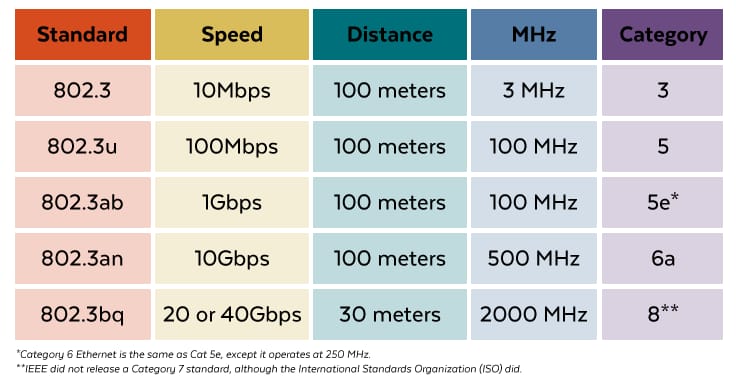
CAT-5 cable carries up to 100 Mbps (802.3u). CAT-5e or CAT-6 gets you 1 Gbps. CAT-6a gets you 10 Gbps.
The cable from the modem to your router is a short run and easy to swap. For most apartments (100–500 Mbps service), any CAT-5e or CAT-6 cable is fine and costs a few dollars. If your ISP is delivering fiber at 1 Gbps or above, a CAT-6a cable is worth having — it's the same price as CAT-6 and removes that bottleneck entirely. Buy it a foot or two longer than you think you need so you can route it cleanly.
Bottleneck 3: Wi-Fi router standard
The primary spec to care about when buying a router is which version of the IEEE 802.11 standard it implements. Each generation adds faster speeds, better multi-device handling, and sometimes longer range or better wall penetration.
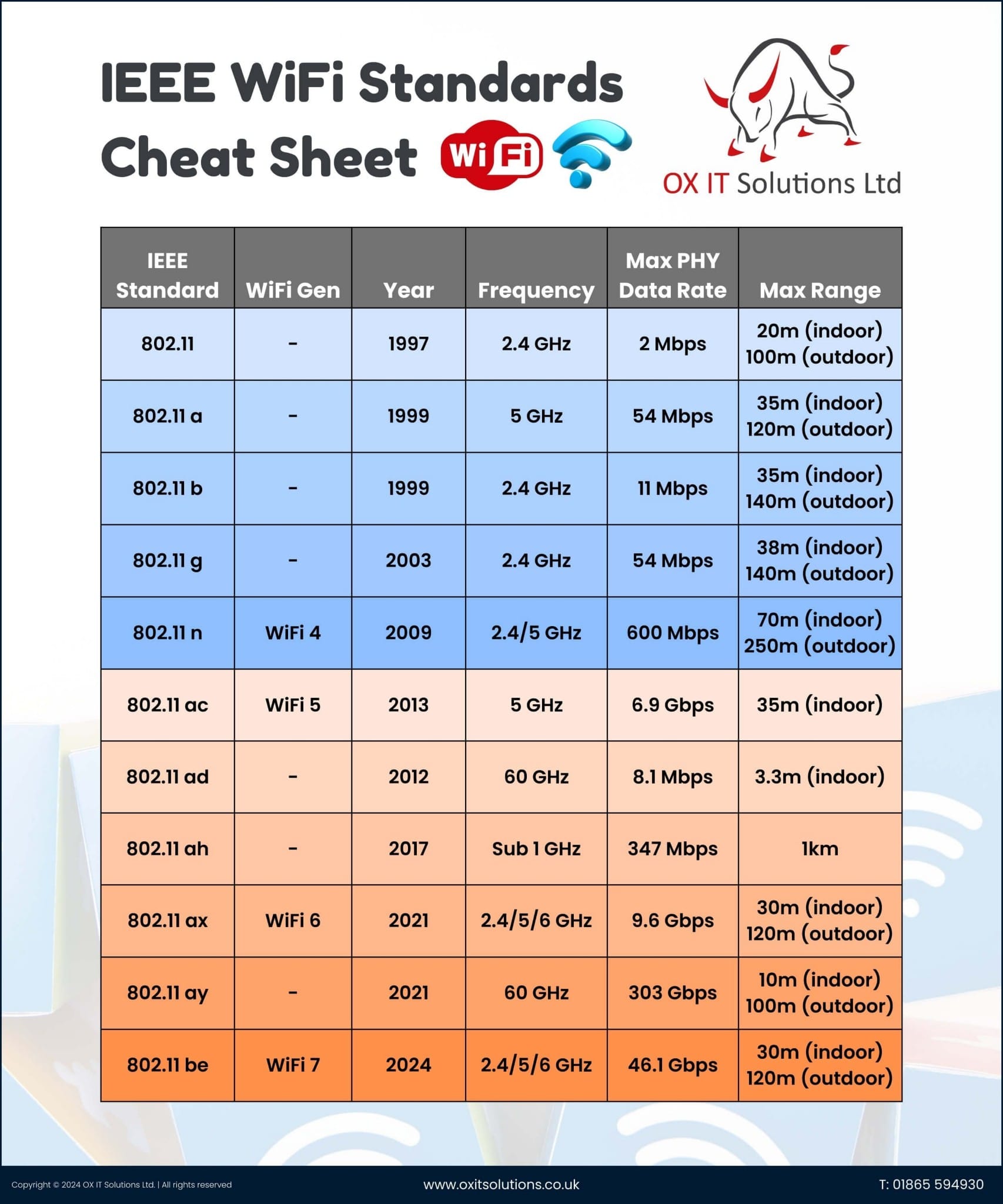
The current generation is 802.11ax (Wi-Fi 6), released in 2021. It supports 2.4/5/6 GHz bands and up to 9.6 Gbps theoretical throughput. This is what you should buy. Wi-Fi 7 (802.11be) exists but commands a price premium that's not yet justified for typical home use.
The key principle is backwards compatibility. Newer devices can always connect wirelessly to older devices. An 802.11ax router will negotiate down to 802.11ac, 802.11n, and so on to work with older laptops/phones. A device cannot negotiate up to a standard it doesn't have the physical antenna hardware for.
Higher 802.11 speeds work at shorter distances and penetrate walls less well. If your router is in a far corner and your device is across the apartment and through two walls, your gear will negotiate down to a slower, longer-range protocol automatically. If it doesn't, there's usually a setting buried in the adapter options to force it.
Wirecutter's router reviews are a reliable starting point for specific models. You do not need a mesh system for a one-bedroom apartment.
Bottleneck 4: RF interference
Wi-Fi is radio. Microwave ovens, baby monitors, older cordless phones, and neighbors' Wi-Fi networks all share the 2.4 GHz band and can degrade performance. The 5 GHz and 6 GHz bands are less congested and faster in part because they have shorter range and penetrate walls less well. Modern routers use band steering to automatically assign each device to the best band — you don't need to choose. If you're in a very dense apartment building and experiencing persistent drops, manually locking a device to 5 GHz is worth trying as a diagnostic step, but it shouldn't be necessary under normal circumstances.
Wiring around the problem is always an option: for gaming consoles and other latency-sensitive devices, plug them directly into an Ethernet port on the router. You skip Wi-Fi and its variability entirely.
Bottleneck 5: Your device's Wi-Fi card
Your laptop's Wi-Fi card determines the maximum standard you can use. On Windows, open Device Manager → Network Adapters and note the adapter name:

Once you have the chip name (here, MT7921), search it to find the spec sheet:
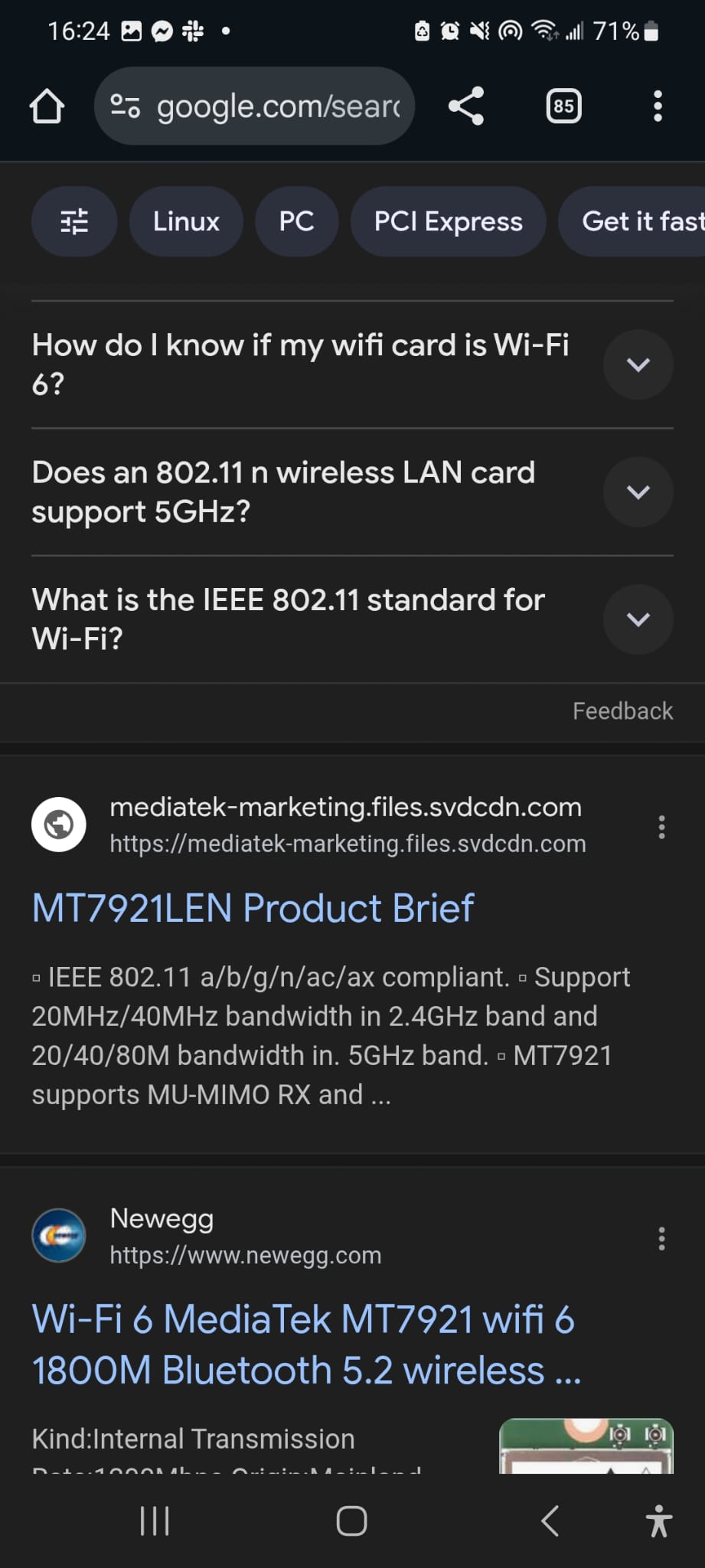
The MT7921 is 802.11ax (Wi-Fi 6). Match or exceed that in your router.
On Linux:
lshw -class network
gives you the chip name under product:, which you can then look up.
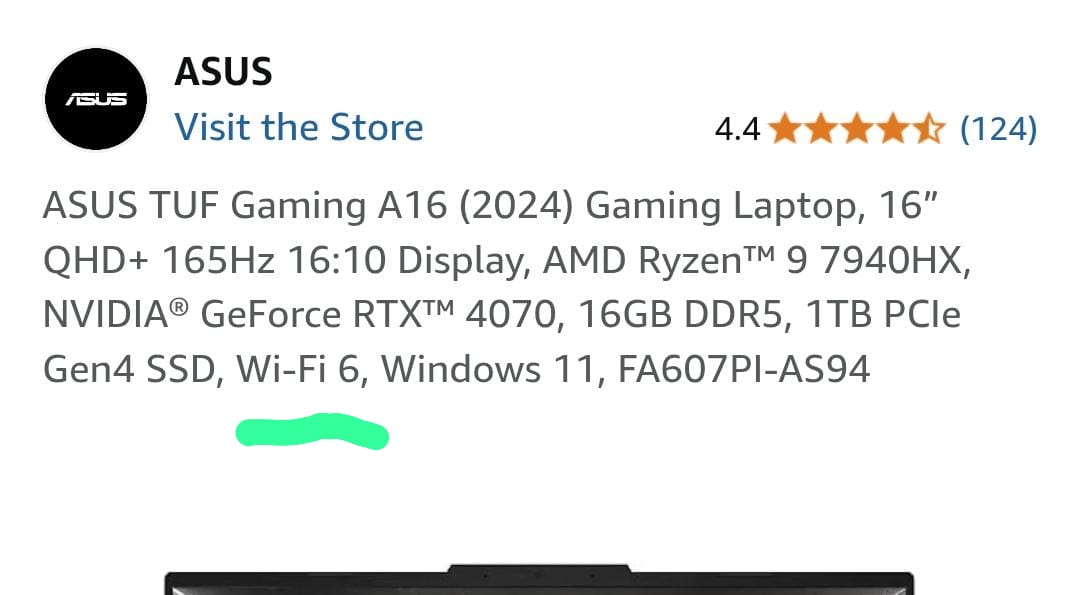
You can also find the Wi-Fi standard listed in a laptop's spec sheet or Amazon product listing — it usually just says "Wi-Fi 6" or "802.11ax":
The ideal setup
If you want to optimize everything:
- ISP delivers ≥ 10 Gbps (only likely with fiber-optic to the unit)
- Modem/ONT outputs ≥ 10 Gbps Ethernet
- CAT-6a cable from modem to router
- Router with ≥ 10 Gbps Ethernet ports and 802.11ax (Wi-Fi 6) or better
- Devices with 802.11ax Wi-Fi cards, on the 5 or 6 GHz band, within clear line of sight of the router
In practice: grab an 802.11ax router and the bottleneck will almost certainly be your ISP. The rest can be debugged later if you ever feel speed-constrained.
The "good enough" ceiling. Any combination of Wi-Fi equipment from roughly the last five years is good enough to stream video, browse the web, and play online games without issues. If you optimize for the newest standards you might be able to watch 8K video; if you just grab an 802.11ax router you'll be fine for everything else.
Notes
Jeff Kaufmann has a post here in which he looks at how ethernet versus wifi affects video calls. Ethernet is better.
Ben Kuhn has a post here on reducing video call stutter and another post on how to make video call quality better.